Create
Everything on this page is free, and always will be. These are the tools for building a map in the first place, and a mind mapper that charged for them would not be much use for trying out.
Topics, as many as you need
Section titled “Topics, as many as you need”There is no topic limit and no fixed page size. The canvas grows to fit the map, and the layout re-flows as you add topics, so they never overlap.
Add a child to go deeper, or a sibling to add another topic at the same level. On a phone, the return key moves straight on to the next topic with the keyboard still up, so a list of ideas is one tap per idea. Tap Done when you have finished, and any topic you left empty is cleared away.
Rearrange by dragging
Section titled “Rearrange by dragging”Drag a topic onto another topic to move it there. Drag it onto the line between two siblings to change their order. The whole branch moves with it, and one undo puts it back.
The app will not let you drop a topic inside its own branch. The target turns red and nothing happens when you let go.
Several maps on one page
Section titled “Several maps on one page”Double-tap an empty part of the canvas to start a second, independent map alongside the first. ⋮ → Add another map here does the same from the menu. Keep related ideas side by side without cramming them under one central topic.
Checkboxes and progress
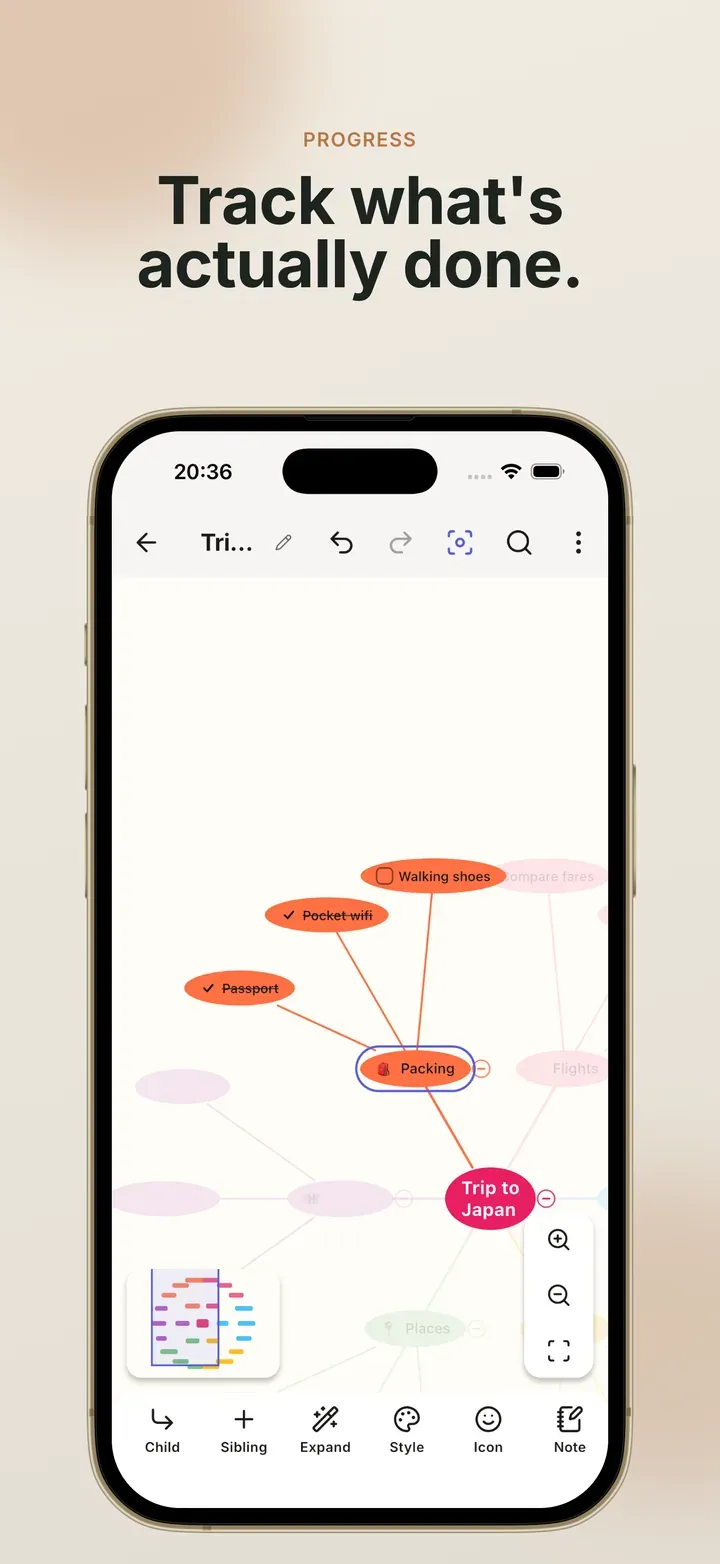
Section titled “Checkboxes and progress”Any topic can be a task. Tick a parent and its children tick with it. Tick all the children and the parent ticks itself.
A progress bar on a topic can follow the checkboxes underneath it automatically, or you can set it by hand from 0 to 100%. When a map is mostly done, Hide ticked tasks takes the finished branches off the canvas without deleting anything.
Auto-numbering
Section titled “Auto-numbering”Turn on Number the children for any topic and its children are numbered
1., 2., 3.. Turn it on for one of those as well and its children become
1.1, 1.2. Labels are skipped, so they never take up a number.
Cross-links
Section titled “Cross-links”Most connections in a map are parent and child. A cross-link joins any two topics, even ones in different branches. It is drawn as a dashed curve, and it follows both topics wherever they move.
Tap a cross-link to give it a label, switch between dashed and solid, choose which ends have arrows, change how much it bends, or pick a colour. Deleting a cross-link leaves both topics exactly where they were.
Labels and call-outs
Section titled “Labels and call-outs”Not everything on a map is a topic. Change a topic’s type to a label for plain text with no box, or to a call-out for a speech-bubble note beside the branch.
Keeping a big map readable
Section titled “Keeping a big map readable”- Collapse a branch to fold it away. A badge shows how many topics are inside.
- Hide a branch to leave it out of the map, and out of exports too, until you show it again.
- Autofocus dims everything outside the branch you have selected.
- Borders draw a tinted outline around a whole branch, or a dashed one around a topic and its children.
- Compact spacing shortens the connectors so more of the map fits on screen. Topics stay the same size.
Related
Section titled “Related”- Edit and rearrange: the same features, step by step
- Track tasks and progress: checklists that add up
- Layouts: eight ways to arrange what you made
 Mind Map: Smart Mind
Made by MyGems · © 2026 MyGems